In SAP Business One, there’s a term called “Golden Arrow“. It refers to a link between documents or master data.
For example, on Sales Order document, there’s always a reference field for every item code on the details of that transaction.
You can use this model in crystal report, so the report result will have same functionality with SAP’s Golden Arrow. To be able to do this, crystal report reference must have a code or primary key of master data or transaction document that you need to show in reports.
For example, if you want to have reference to Item Master Data, then the Item Code must be exist in the Crystal Report.
This is how to do it :
- First, like usual, create a layout.
- Then, insert a picture, from the menu : Insert – Picture
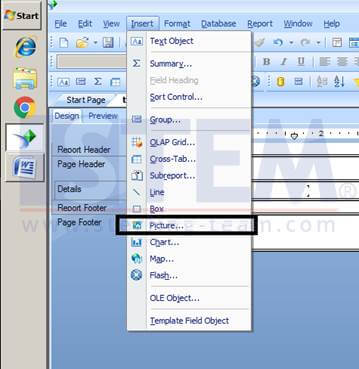
- Create a hyperlink for the inserted picture, and choose Format Graphic
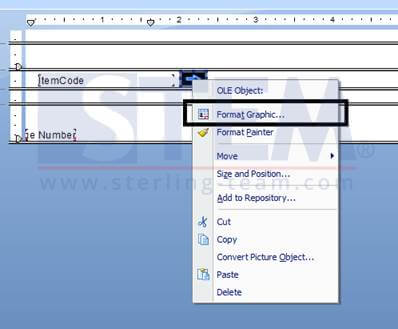
- Next, it will show a dialog window like the picture below, and choose tab Hyperlink, Selanjut akan muncul window dialog seperti gambar di bawah ini, pilih tab Hyperlink – A Website on the internet, and then go to Website Address (see steps in the picture)
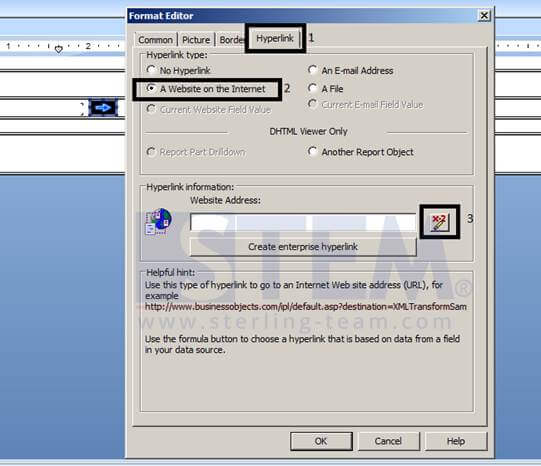
- You can insert a formula with format like this :

You can replace the text inside the box according to your formula / requirement. For this example, the hyperlink will be pointing to Item Master Data, so the first textbox will be replace with item master data table, which is OITM.
And for the second textbox, it must be the primary key of the respective table. In this case, the primary key of OITM is ItemCode.
This is the reason why you should also bring the primary key in the crystal report query or data source.